Showing posts with label os x. Show all posts

Monday, March 14, 2016

OSX - Disabling Spindump and VM Compressor 

In case you need to do so. 

If you do, you'll know why. I'm not spending a lot of time getting into the why's and why-not's.  

Just putting this note here, for reference: 


VM Compressor: 
# nvram boot-args="vm_compressor=1" 
--reboot-- 

Check mode: 
# sysctl -a vm.compressor_mode vm.compressor_mode: 1 

------------------------ 

Spindump: 
# cd /usr/sbin/ 
# mv spindump spindump.bak 
# ln -s /usr/bin/true /usr/sbin/spindump 
# launchctl unload -w /System/Library/LaunchDaemons/com.apple.spindump.plist

Tuesday, December 02, 2014

Mac OS X Mavericks and Yosemite running out of memory "fix"

Silly Mac OSX.

Clean up memory cache easily this way:

Add the following entry in your root's crontab:
# Clean up memory
30 * * * * /usr/sbin/purge &

Use at your own risk, but I have not had issues with it.

If you don't know how to update your root crontab, well, then you have no business running this. Use some 3rd party graphical app or something to clean up.

FYI: Some people are having issue with Chrome and Flash and other programs not "letting go" of reserved memory, after use. This will help alleviate the issue. Developers are arguing over it's use, claiming memory management is just fine in OS X 10 Mavericks and later. I beg to differ as I have seen memory run out several times myself with using Chrome web browser and it not letting resources go.

You can read more about it, here:
http://osxdaily.com/2013/11/14/use-purge-command-os-x-mavericks/

Monday, September 30, 2013

Recover a file with LSOF....

Just a quick and dirty of how to recover a file in LSOF.


lsof (List Open Files) is a *nix tool that will show open files and network connections. Of course, it's also available for OS X.
You can recover deleted files with it.
If you have ever deleted a file by mistake you can recover the deleted file. 
For example, to recover a missing messages log used by Syslog you can search for it via this command:
bash:~  lsof | grep messages
You should see something similar to:
syslogd   15328      root    2w      REG              253,2   1419873               983175 /var/log/messages.5 (deleted)
You want to find what is marked as deleted in parenthesis.  The process (15328) still has the file open. Without this process keeping the file open we would have lost the file permanently. This is important. Once the process stops, you won't be able to trace the file this way, so avoid rebooting or stopping the process entirely, until after you've recovered the lost file.

We can view the missing info by looking inside the proc filesystem, the process id (15328), and in the file descriptor (fd). The fd is found in the 4th entry, above (2w in this example):
bash:~  cat /proc/15328/fd/2
This outputs the contents the deleted messages.5 file. As you can see, the data is still there. Now, just redirect the contents back to /var/log/messages.5:
bash:~  cat /proc/15328/fd/2 > /var/log/messages.5
That's all there is to it. You have recovered the file with all the data back to its original location. You should also restart the process, writing to the file(s) recovered.
This is just one of many examples of how lsof can be very useful. Be sure to check out the Man pages and other docs.

Saturday, September 09, 2006

How to restart the OSX Desktop...

Without loging out and back in.

Useful for when desktop "freezes" or you have artifacts (see Macbook) and don't want to kill off background processes.

1. Open up term app

2. ps -aux|grep Graphics

3. Find the following:
windowse 52 0.9 5.6 915688 57592 ?? Ss 11:02AM 0:20.62 /System/Library/Frameworks/ApplicationServices.framework/Frameworks/CoreGraphics.framework/Resources/WindowServer -daemon

4. then HUP the found process:
sudo kill -HUP 52

52 is the process id tht I found. Yours will be different.

This will restart the GUI, logging you out, but at least you won't have to reboot the whole machine.

Sunday, September 03, 2006

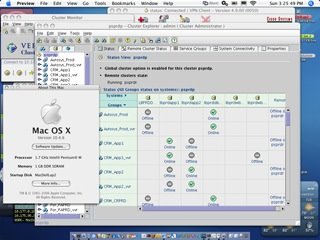
Veritas Cluster GUI 4.x in OSX howto

I hacked this together, so I can run the VCS cluster GUI on my Mac, instead of relying on Winbloze. I am almost ready to dump MicroCrap altogether! :-)

I'll be working on the VEA gui, later.

While I prefer command-line, sometimes a GUI is still nice. Especially, in a complex cluster arrangement, such as the one I admin.


Veritas Cluster Manager 4.x in Mac OS X


Configuring the Veritas Cluster Manager to use the Mac OS X using OS X native Java.

1- Copy the Veritas GUI from server (/opt/VRTSvcs/gui) to a location of choice on your Mac.
2- Edit hagui script (this script, below) to reflect the location of VRTSvcs and the path to your JAVA Home
3- Open a terminal and run /path/to/VRTSvcs/hagui

The following is a copy of the modified hagui script (modify to your liking):
**************************************************************
#!/bin/sh
#
# START COPYRIGHT-NOTICE: 1998, 2003
#
# Copyright 1998, 2003 VERITAS Software Corporation.
# All rights reserved.
#
# VERITAS, VERITAS SOFTWARE, the VERITAS logo and all other VERITAS
# product names and slogans are trademarks or registered trademarks
# of VERITAS Software Corporation in the USA and/or other countries.
# Other product names and/or slogans mentioned herein may be trade-
# marks or registered trademarks of their respective companies.
#
# END COPYRIGHT-NOTICE.
#

# change the environment's classpath and
# java_home
#unset JAVA_HOME
#unset CLASSPATH
PATH=".:$PATH"
export PATH

#VCS_HOME="/opt/VRTSvcs"
VCS_HOME="/Users/wallen/VRTSvcs"

#JAVA_HOME=$VCS_HOME/gui/jre
LIB_PATH=$VCS_HOME/gui/lib
LANG_PATH=$VCS_HOME/gui/lang

LD_LIBRARY_PATH=$LIB_PATH
export LD_LIBRARY_PATH

BCLASSPATH=${LANG_PATH}:${LIB_PATH}/VCSGui.jar:${LIB_PATH}/gui_images.jar:${LIB_PATH}/sounds.jar:${LIB_PATH}/VxHelpViewer.jar:${LIB_PATH}/VxHelpViewerl10n.jar

DEBUG=0
if [ "$1" = "-D" ] ; then
DEBUG=1
shift 1
fi

if [ "$#" = 0 ] ; then
if [ "$CSGA_DIR" = "" ] ; then
CONF_PATH=$VCS_HOME/gui/
else
CONF_PATH=$CSGA_DIR
fi
elif [ "$#" = 1 ] ; then
CONF_PATH=$*
shift 1
elif [ "$#" -gt 1 ] ; then
if [ -d "$1" ] ; then
CONF_PATH=$1
shift 1
elif [ "$1" != "-h" ] && [ "$1" != "-p" ] ; then
echo "$1: configuration directory doesn't exist."
exit 1
fi
else
echo "$SELFNAME: configuration directory is incorrect!"
exit 1
fi


CLASSPATH=${CONF_PATH}:$BCLASSPATH:$JAVA_HOME/lib/rt.jar:$JAVA_HOME/lib/i18n.jar
export CLASSPATH

if [ $DEBUG = 0 ] ; then
exec $JAVA_HOME/bin/java -Dbase.dir="/opt/VRTSvcs/gui" -classpath $CLASSPATH -mx128m VCSGui $* > /dev/null
else
exec $JAVA_HOME/bin/java -Dbase.dir="/opt/VRTSvcs/gui" -classpath $CLASSPATH -mx128m VCSGui $*
fi